Dashboard
When you open Campaign Manager, the Dashboard is the first screen you see. It's a list of every campaign that's ever been made, with the newest one at the top. From here you can look up a campaign's details, or edit and delete it.
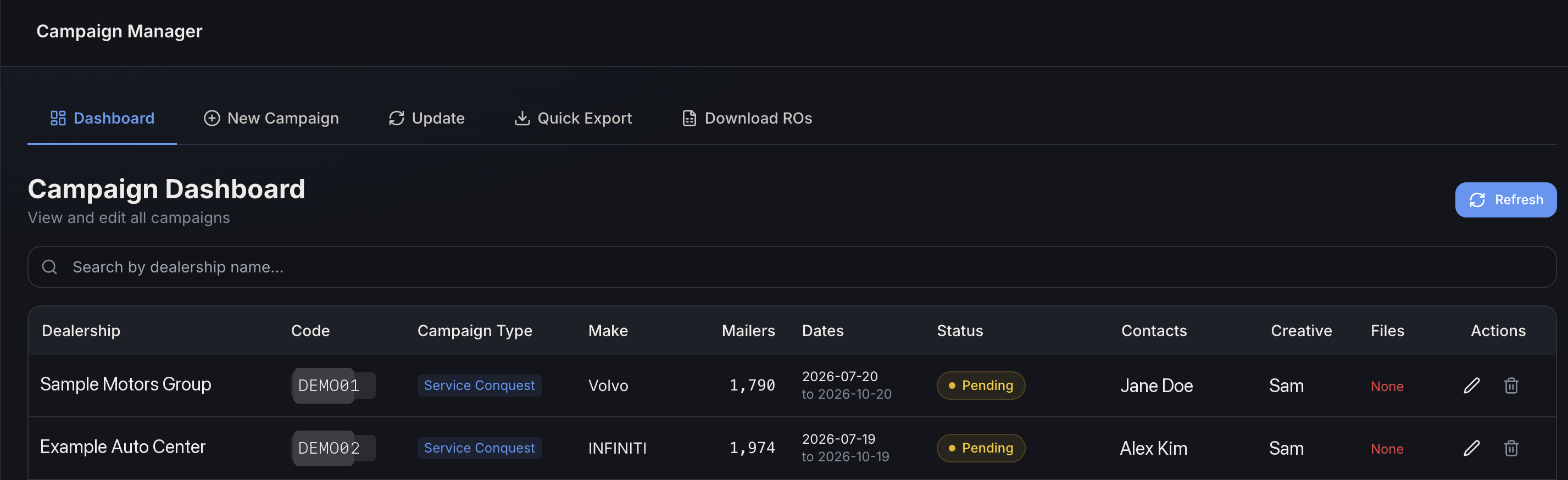
(Dealership, code, contact, and creative names shown above are sample data.)
What each column means
| Column | What it tells you |
|---|---|
| Dealership | Which dealership this campaign is for. |
| Code | A short code that belongs only to this campaign. Click it to copy it — see Using the campaign code below. |
| Campaign Type | What kind of campaign this is. See Campaign Types below to learn what each one does. |
| Make | Which vehicle brand this campaign is targeting. |
| Mailers | How many mailers are being sent for this campaign. |
| Dates | The start date and end date of the campaign. |
| Status | A colored label showing what stage the campaign is at right now (for example, Pending, Files Attached, or Complete). See Campaign Statuses below to learn what each stage means. |
| Contacts | The name(s) of the person at the dealership this campaign is for. |
| Creative | Who designed the mailer for this campaign. |
| Files | Whether a file has been uploaded for this campaign yet. It shows in green if one has, and in red if not. |
| Actions | Two small buttons — a pencil to edit the campaign, and a trash can to delete it. |
Campaign Types
These are the campaign types currently used:
| Campaign Type | Built from | What it does |
|---|---|---|
| Service Conquest | A customer address list (Experian) | Targets customers for service visits. |
| Lost Souls Service Acquisition | A customer address list (Experian) | Re-engages inactive customers. |
| Recall Client Acquisition | A specific vehicle list (M1) | Sends safety recall notifications. |
This also affects what happens after the file is uploaded: Recall Client Acquisition campaigns are built from a list of specific vehicles, so they need a recall check before they can move forward — that's the Recalls Processing step in Campaign Statuses below. The other two types are built from an address list with no vehicles to check, so they skip that step entirely.
Using the campaign code
Each campaign has its own code, shown in the Code column. This makes uploading files simple: instead of telling us which campaign a file belongs to, just add the campaign's code to the file's name before you upload it. The file will be matched to the right campaign for you.

(Code and dealership names shown above are sample data.)
How to do it:
- Click the code in the Code column to copy it.
- Paste it into the name of the file you're about to upload.
- Upload the file as usual — it will be linked to that campaign for you.
Campaign Statuses
A campaign moves through these statuses in order:
| Status | What it means |
|---|---|
| Pending | Campaign created, no source file uploaded yet. |
| Files Attached | Source file linked and ready for the next step. |
| Recalls Processing | We're checking those vehicles for open recalls. Only happens for Recall Client Acquisition campaigns — see Campaign Types above. |
| Pending RO Suppression | Ready for repair-order suppression — this removes customers who've already come in for service recently, so they don't get a mailer they don't need. |
| 1st Mailer Sent, 2nd Mailer Sent, 3rd Mailer Sent (and beyond) | That mailer in the sequence has gone out — see Campaign Mail Dates below for how this is scheduled. |
| Complete | Full mailer sequence finished. |
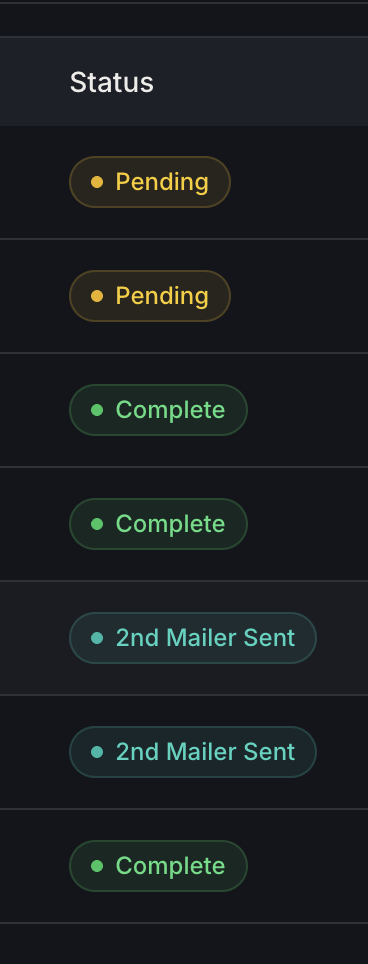
If you ever see a status that doesn't match any of these, it just means that one isn't recognized yet — it'll show up as plain gray text instead of a colored label.
(For reference, the raw system values behind each status are: pending,
file_attached/files_attached, recall_pending/recalls_pending,
completed, mail_1_sent/mail_2_sent/..., and campaign_completed. You
won't need these day to day — they're only useful if you're describing an
issue to support.)
Searching for a campaign
There's a search box above the list. Type in it to find a campaign — but note it only searches by dealership name. It won't find a campaign if you type its code, make, or status instead.

Editing a campaign
Click the pencil icon next to a campaign. A window will open where you can change:
- The start and end dates
- The campaign type
- The number of mailers
- Who's assigned to the creative
- Any notes about the campaign
- The file(s) linked to it
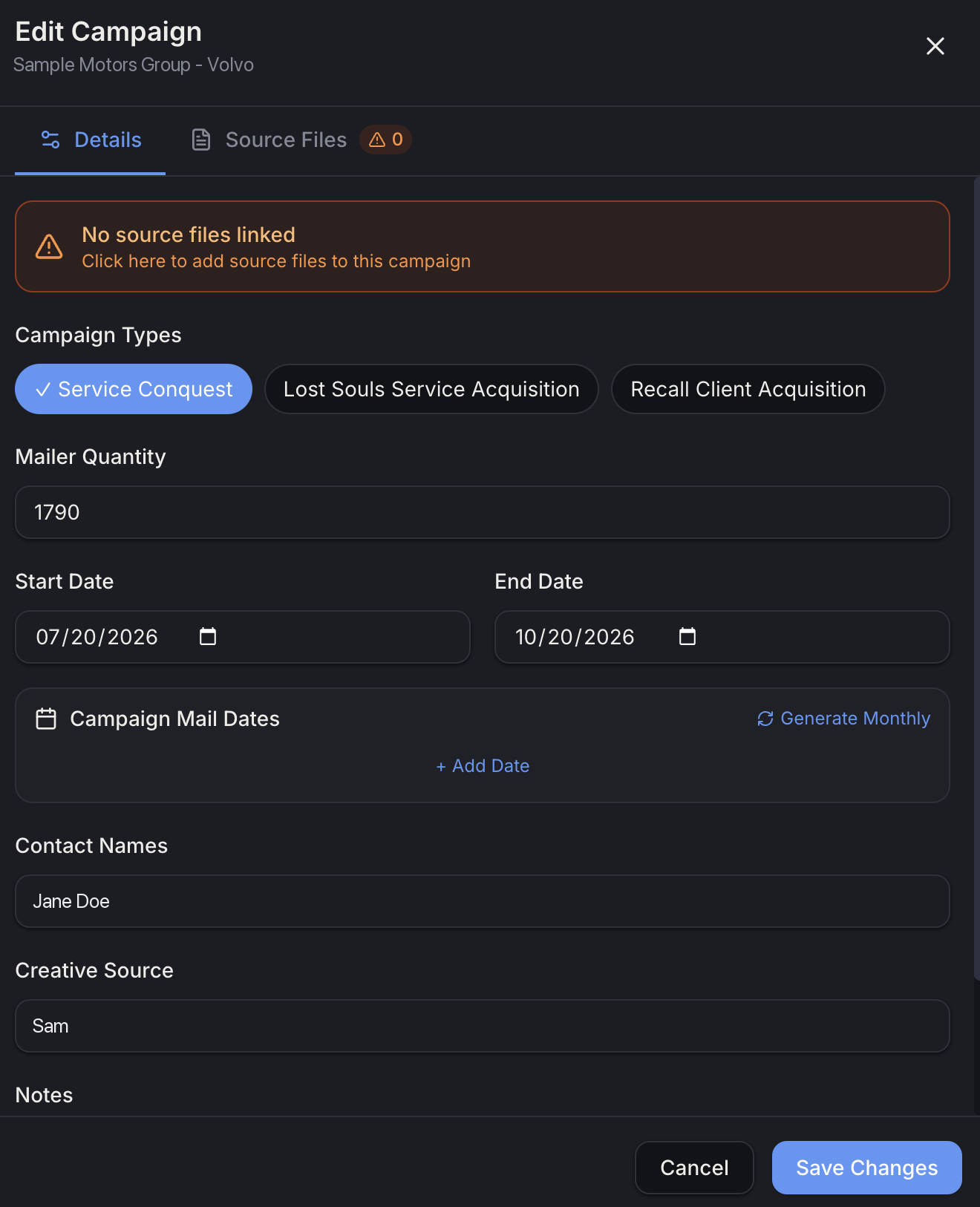
(Dealership, contact, and creative names shown above are sample data.)
Campaign Mail Dates
Inside the edit window, Campaign Mail Dates is where the actual mailer schedule lives. The Start Date and End Date just set the campaign's overall window — this list is the specific dates a mailer will go out within that window.
- Generate Monthly automatically fills in one date per month between the start and end dates.
- + Add Date lets you add a specific date by hand, and each one has its own date picker and a remove (X) button next to it.
This list is also what drives the Mailer Sent statuses: every day, a scheduled process sends the mailer for whichever date is due and marks it done. The status just reflects how many dates have gone out so far — 1st Mailer Sent means the first date has gone out, 2nd Mailer Sent means the first two have, and so on. Once every date on the list has gone out, the campaign moves to Complete. A campaign with only one mail date will skip straight from Pending RO Suppression to Complete — you'd never see a "2nd Mailer Sent" for it.
The Source Files tab is where you link a file to the campaign:
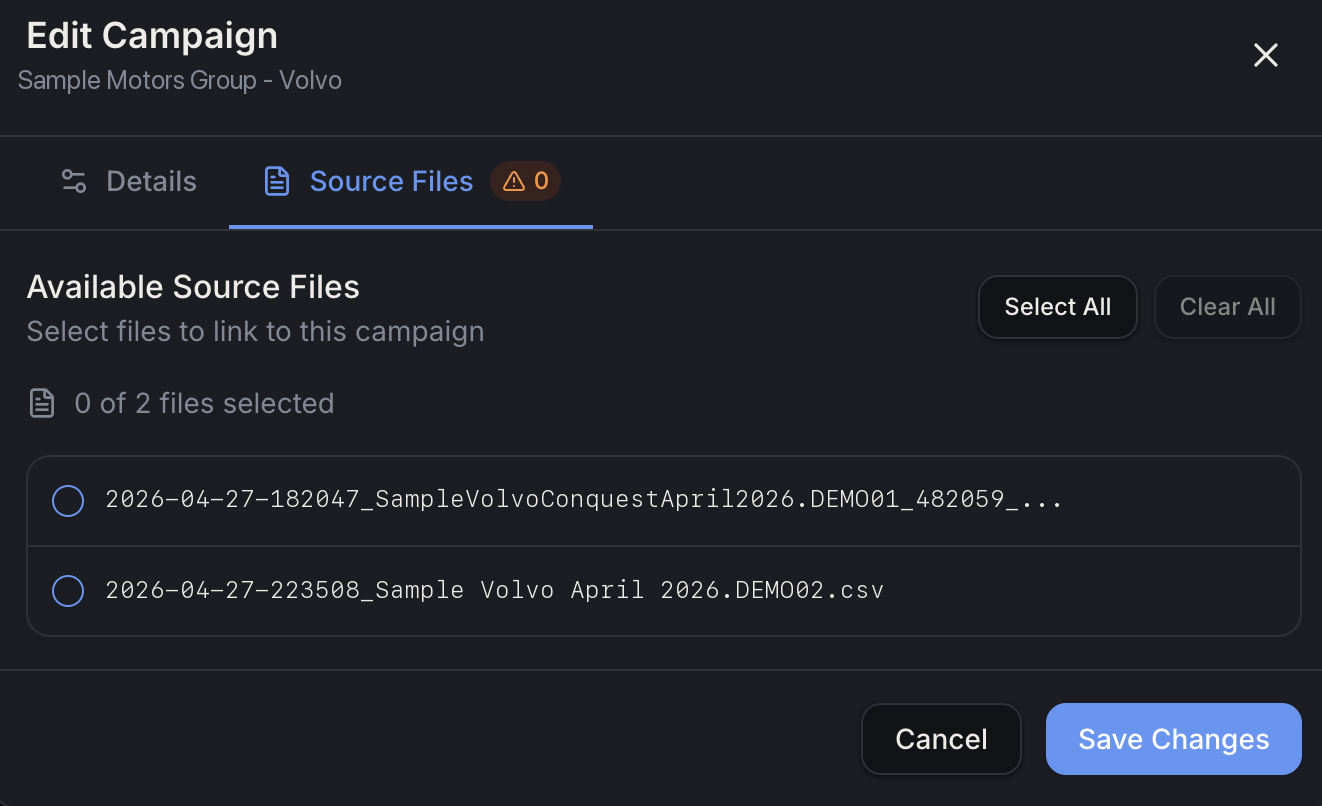
(Dealership and file names shown above are sample data.)
Deleting a campaign
Click the trash can icon next to a campaign. Before anything happens, a box will pop up asking you to confirm, showing the dealership name and make. The campaign is only deleted once you confirm — and once it's deleted, it can't be brought back.
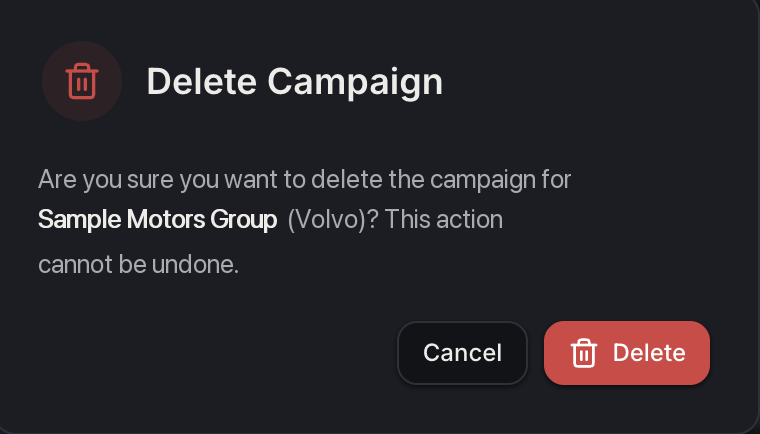
(Dealership name shown above is sample data.)
A couple of other things on this page
-
Refresh button — click this (top-right of the page) to make sure you're seeing the latest list of campaigns.
-
"No campaigns found" — if your search doesn't match anything, or there are no campaigns yet, you'll see a short message instead of an empty list, letting you know you can create a new campaign.

(Search term shown above is a sample — not a real dealership.)