Download ROs
This tab downloads repair order (RO) data for a dealership — separate from any specific campaign, similar to Quick Export. There are 2 steps, plus a live preview panel and a download button.
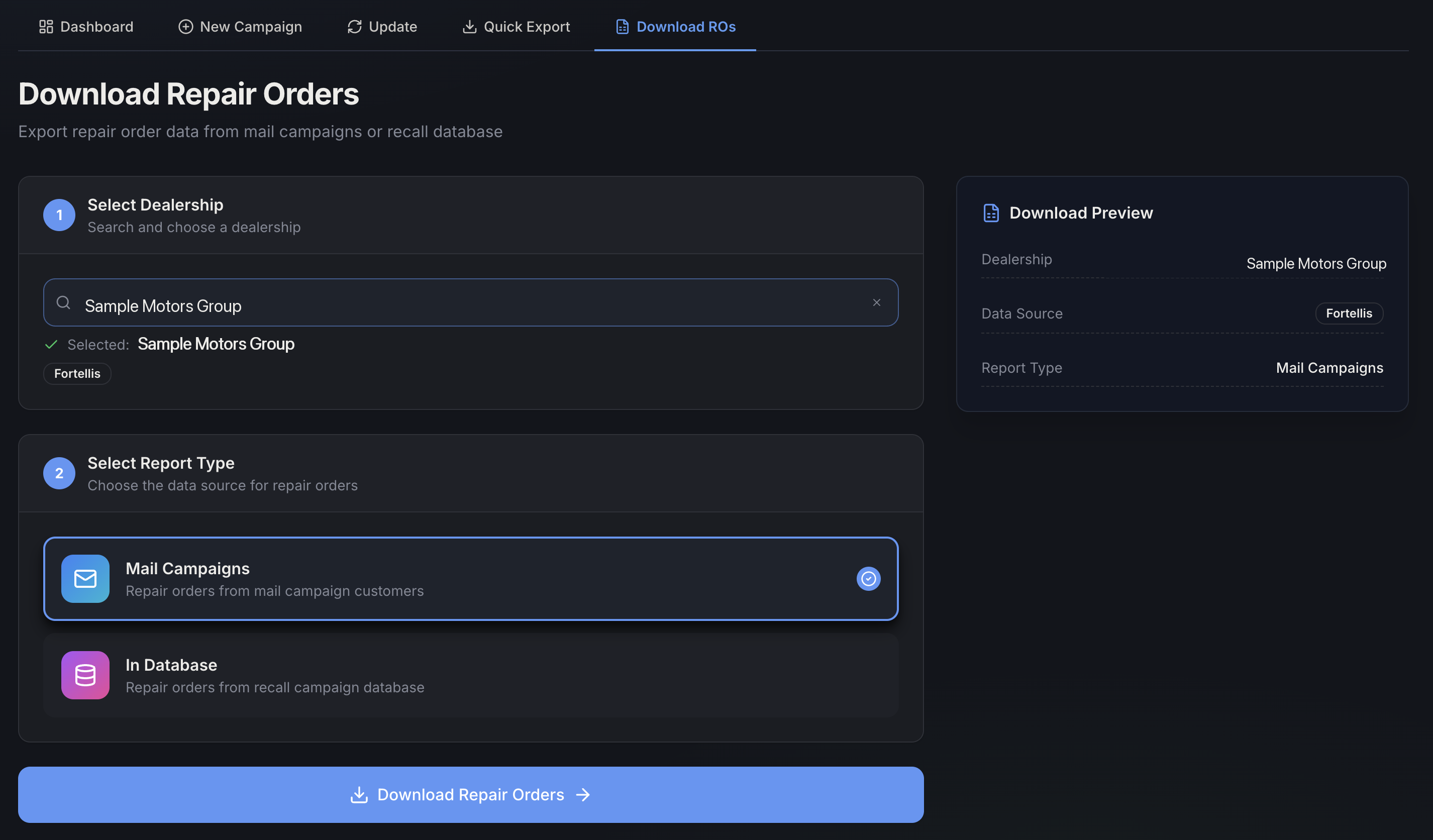
(Dealership name shown above is sample data.)
Step 1: Select Dealership
Search for and select the dealership. See Dealership search results for what the percentage badge next to each result means. Once selected, you'll see its Data Source shown as a badge (for example, Fortellis) — this comes from how that dealership's data is set up, and it affects which report types are available in Step 2.
Step 2: Select Report Type
There are 2 report types:
| Report Type | What it downloads |
|---|---|
| Mail Campaigns | Repair orders from mail campaign customers |
| In Database | Repair orders from the recall campaign database |
In Database is not available for uNotifi dealerships — if the dealership's data source is uNotifi, that option is greyed out with a "Not available for uNotifi" label instead of being selectable.
As you fill in the dealership and report type, the Download Preview panel on the right updates live with the dealership, data source, and report type — so you can confirm everything before downloading.
Downloading
Click Download Repair Orders. Unlike Quick Export, this isn't a background job — the file downloads right away. Depending on what's found, you'll see one of a few outcomes:
- Download Complete! — the file has already downloaded, and you'll see the dealership name and how many records were included. Click Download Another File to start over.
- No Records Found — no repair orders matched, so there's nothing to download. You'll see a message explaining why, instead of an empty or broken file.
- Download Failed — something went wrong on the way. You'll see the error message along with Retry and Dismiss buttons, instead of the page just failing silently.