Quick Export
Quick Export generates and downloads a suppression file for a dealership on the spot — it's not tied to a specific campaign already in the system like the other tabs are. Use this when you just need a fresh mailing list right now.
Steps 1 & 2: Dealership and export type
Search for the dealership, then choose what kind of list you're exporting. See Dealership search results for what the percentage badge next to each result means.
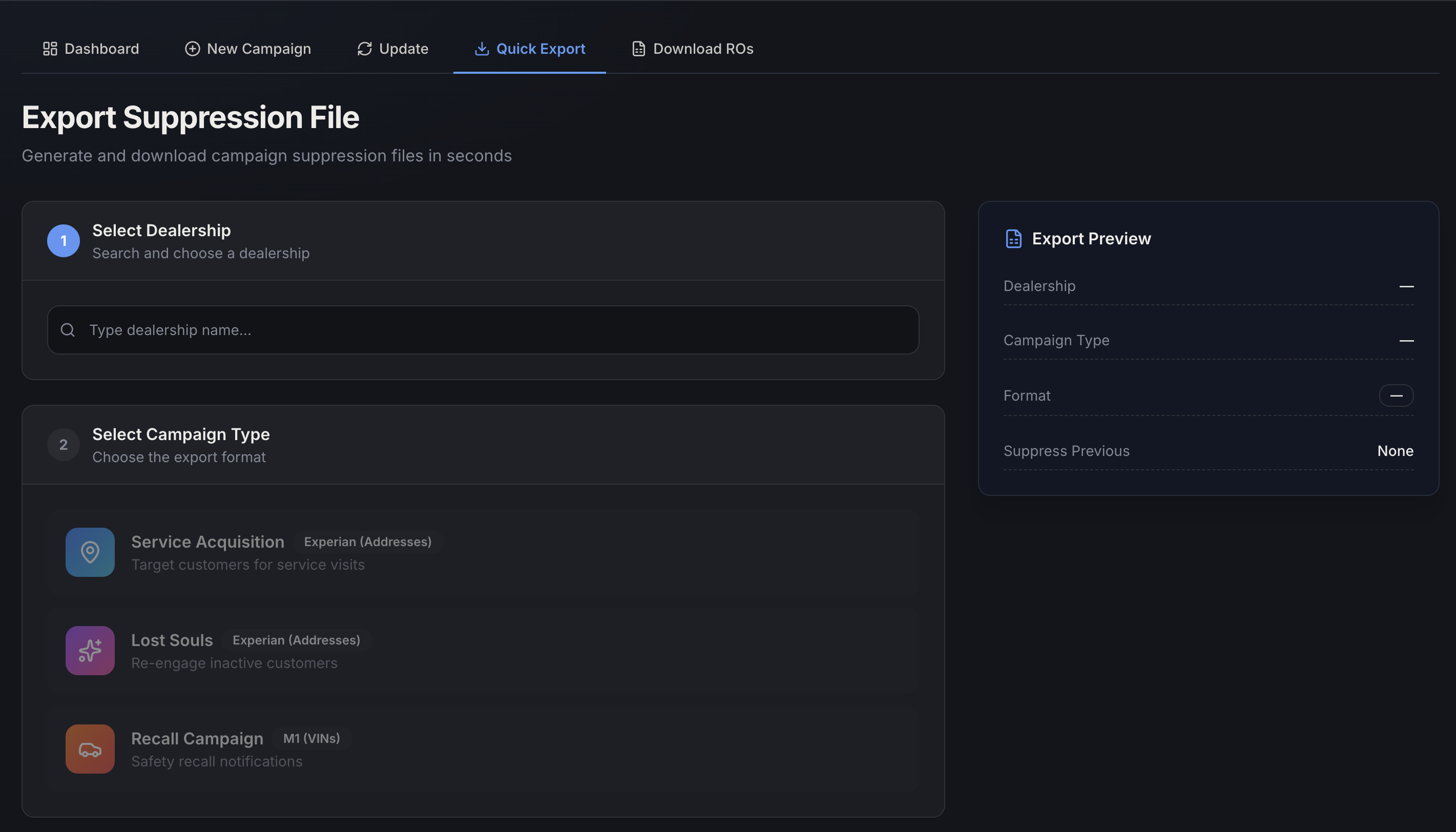
There are 3 export types:
| Type | Built from | What it's for |
|---|---|---|
| Service Acquisition | A customer address list (Experian) | Targeting customers for service visits |
| Lost Souls | A customer address list (Experian) | Re-engaging inactive customers |
| Recall Campaign | A specific vehicle list (M1/VINs) | Safety recall notifications |
As you fill in the dealership and export type, the Export Preview panel on the right fills in live — dealership, campaign type, format, and suppression setting — so you can double check everything before exporting.
Lost Souls verification
Once you pick a dealership, the right-hand panel fills in with real numbers — including a Lost Souls count (an estimate, before removing bad addresses) — and a Lost Souls Verification card breaks that count down further:
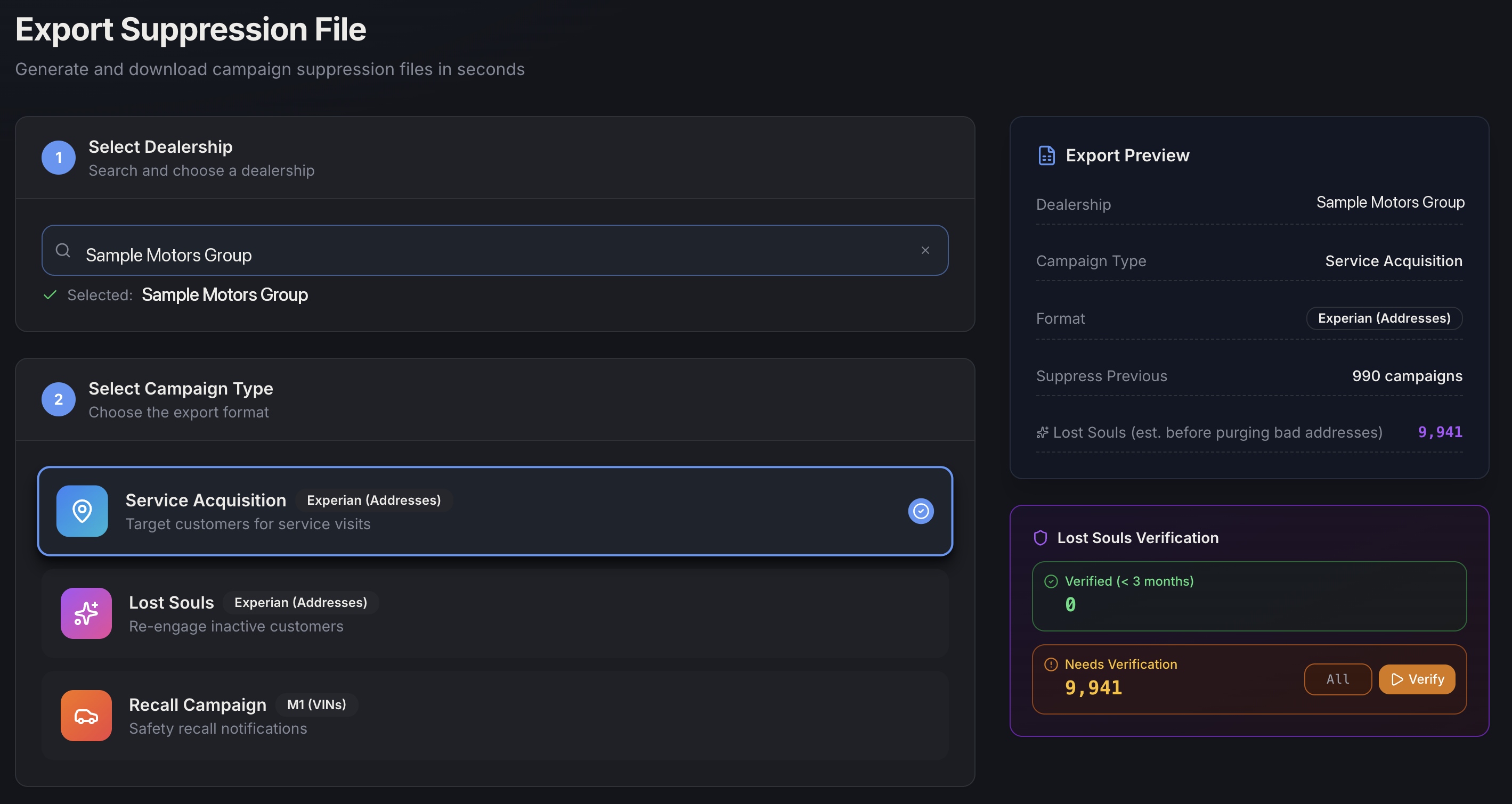
(Dealership name shown above is sample data.)
- Verified (< 3 months) — addresses checked recently. These are ready to download immediately with their own CSV button — this download is instant, not the longer export process below. After it downloads, you'll see how many records came down and, if any addresses were bad, how many were removed. If nothing matches, you'll see a "No records found for this filter" message instead of a blank file.
- Needs Verification — older addresses that haven't been re-checked. You can optionally cap how many to check (leave it blank/"All" to check everything), then click Verify to kick off Polk address verification. This takes about 15 minutes — you can leave the page and come back, and the counts refresh automatically once it's done. If verification is already running for this dealership, clicking Verify again just shows you the time remaining instead of starting a second one.
Step 3: Previous Campaign Count
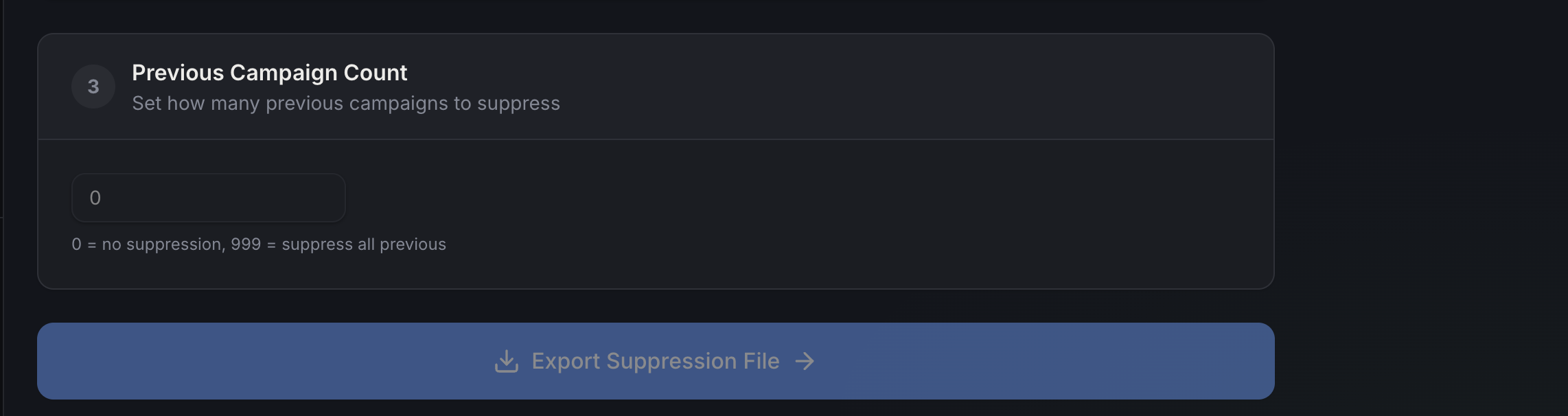
Previous Campaign Count controls how many past campaigns' customers get excluded from this export (people who already received a recent mailer). Enter 0 for no suppression, 999 to suppress against every previous campaign, or a specific number in between — the Export Preview panel reflects it back as "None," "All," or "N campaigns" accordingly.
Exporting the file
Click Export Suppression File to generate the file. This runs as a background job, checking every few seconds until it's ready — larger exports take a little longer, so you'll see a progress message while it works. If it runs unusually long (several minutes), it will eventually time out and ask you to try again.
Once it's ready, you'll get a record count and a Download CSV button — the download link expires after 24 hours, so grab it before then. There's also an Export Another File button to start over without re-entering the dealership.
If something goes wrong, you'll see an Export Failed message with a Retry button, instead of the file silently failing.