Update
This tab is specifically for linking source files to a campaign that already exists — it doesn't let you change dates, mailer quantity, or other details (for that, use the pencil icon on the Dashboard instead). It's a guided, step-by-step alternative to that, useful when you don't already have the campaign open in front of you.
There are 5 steps: Dealership, Vehicle, Campaign, Source Files, and Review. Like New Campaign, Continue stays greyed out until each step has what it needs, and you can go back with Back at any point.
Step 1: Dealership
Search for and select the dealership whose campaign you want to update. See Dealership search results for what the percentage badge next to each result means.
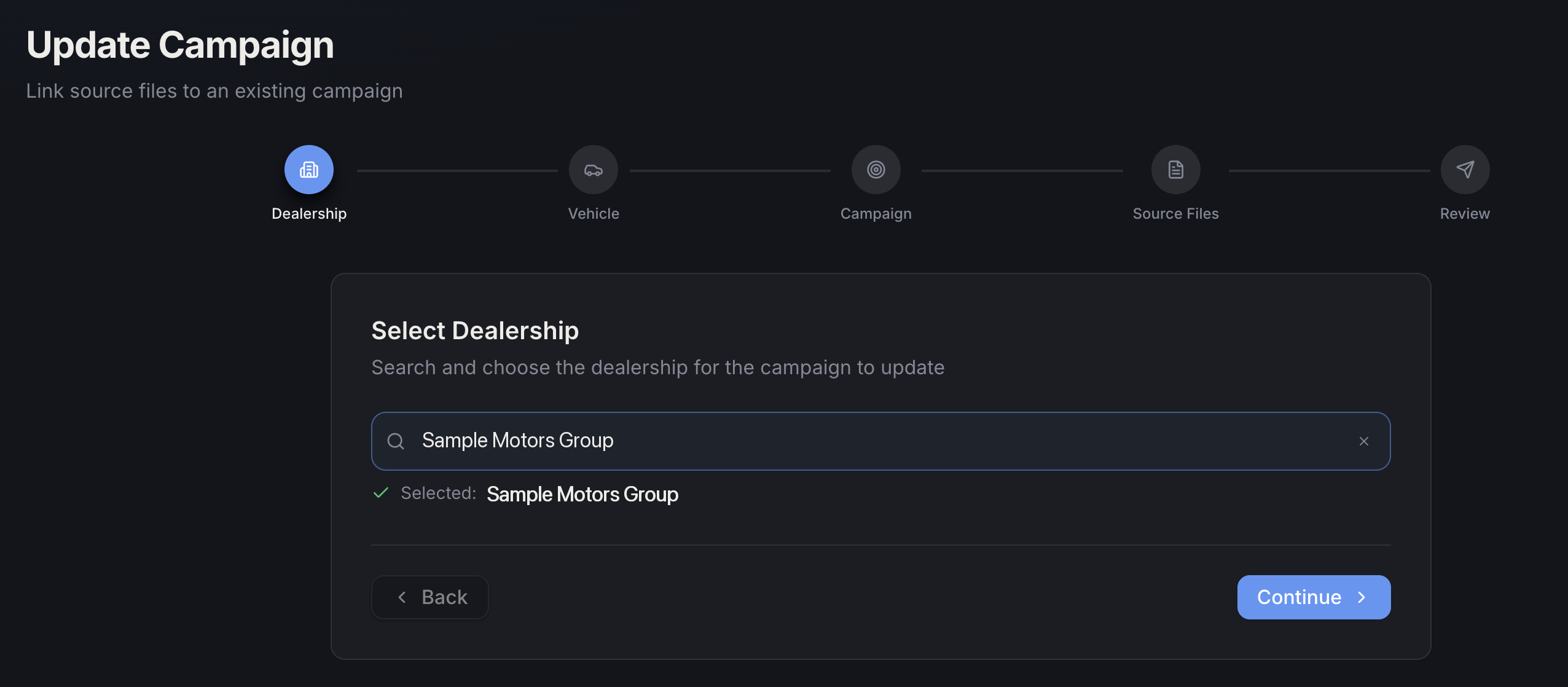
(Dealership name shown above is sample data.)
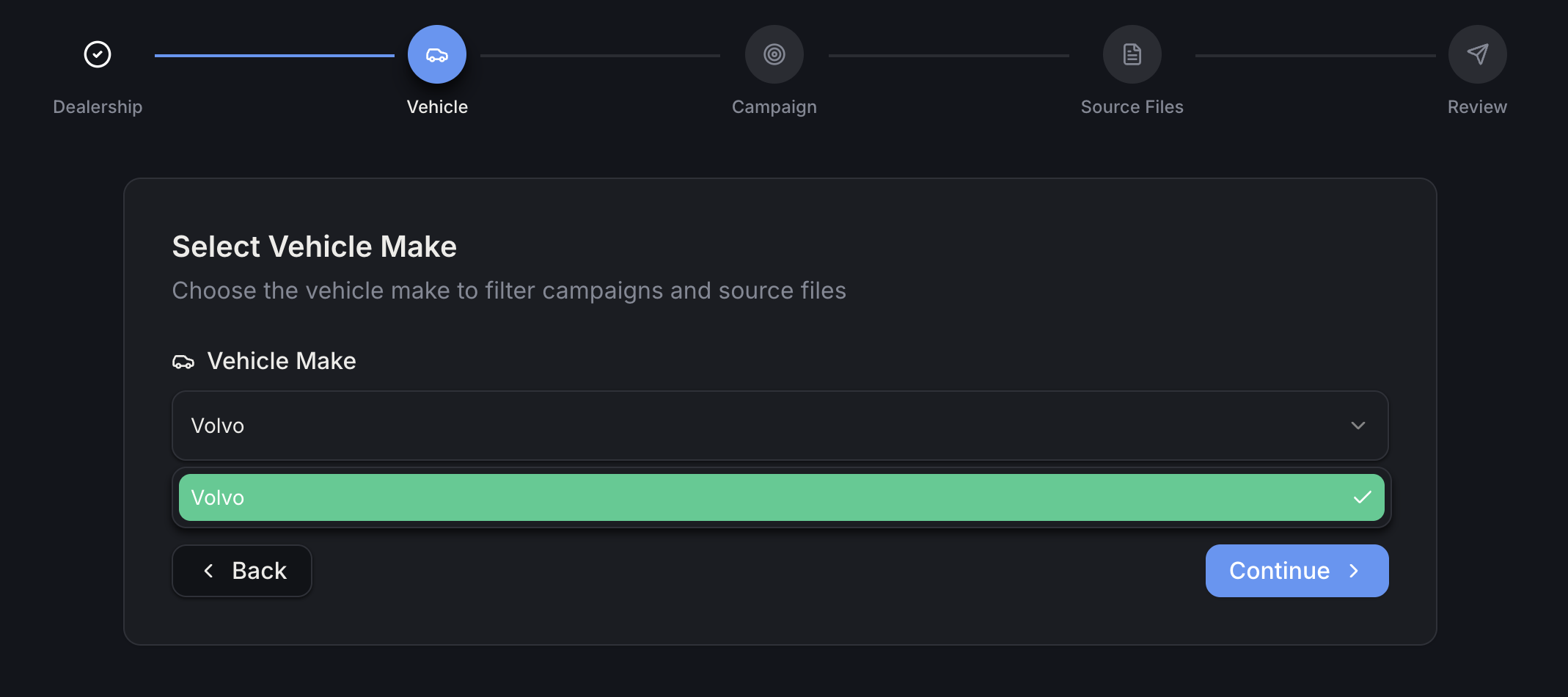
Step 2: Vehicle
Pick the vehicle make — the options here depend on the dealership you picked in Step 1. If the dealership only has one make on file, it's selected automatically for you.
Step 3: Campaign
Choose which campaign to update from a list of that dealership + make's campaigns from the last 3 months. Each one shows its campaign type, date range, mailer count, and when it was created — plus a "Has files" badge if it already has source files linked.
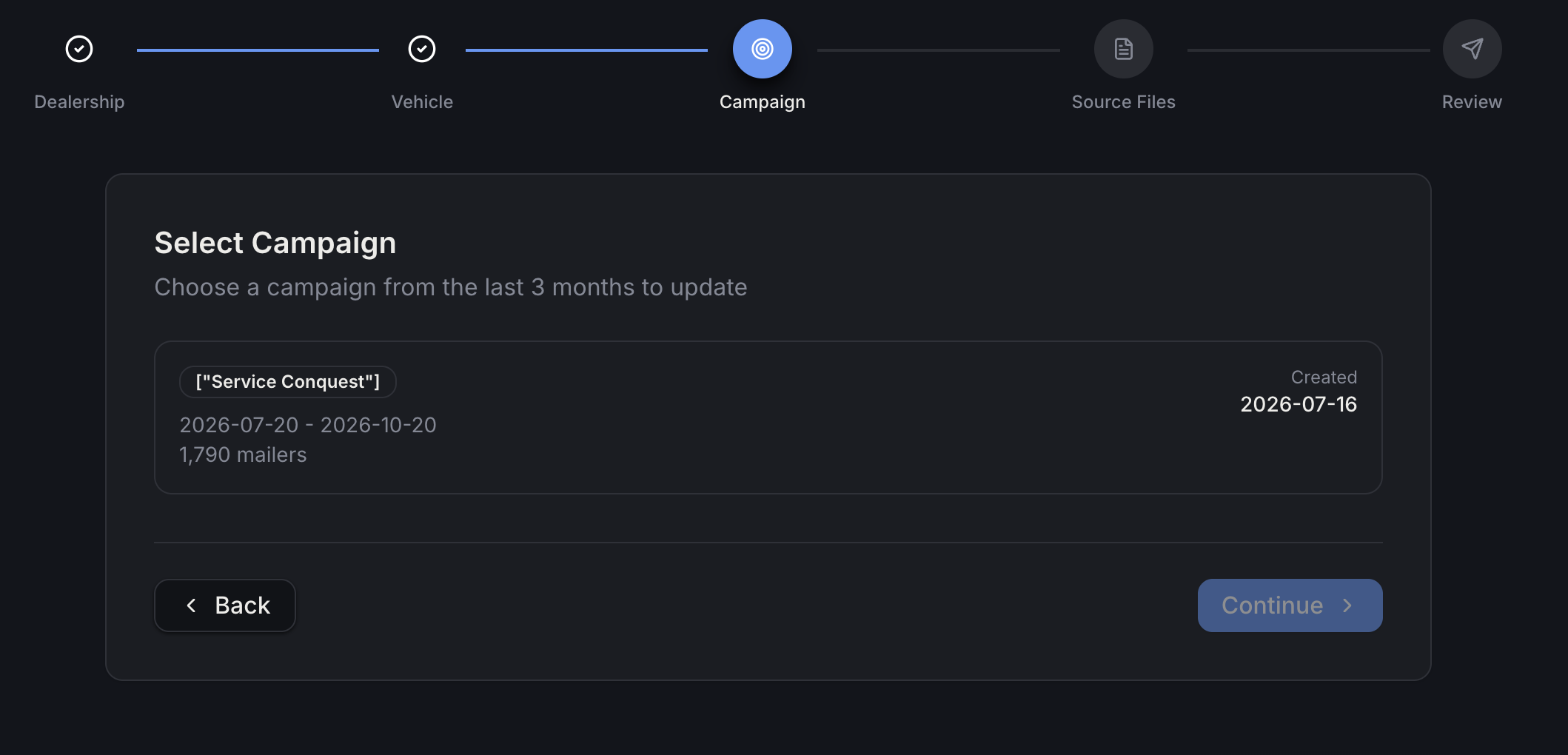
If a campaign is older than 3 months, it won't show up here — go through the Dashboard instead, which isn't limited the same way for editing.
Step 4: Source Files
Choose which file(s) to link to the campaign you selected. Same controls as the Dashboard's edit window: Select All / Clear All, and a running count of how many files are selected.
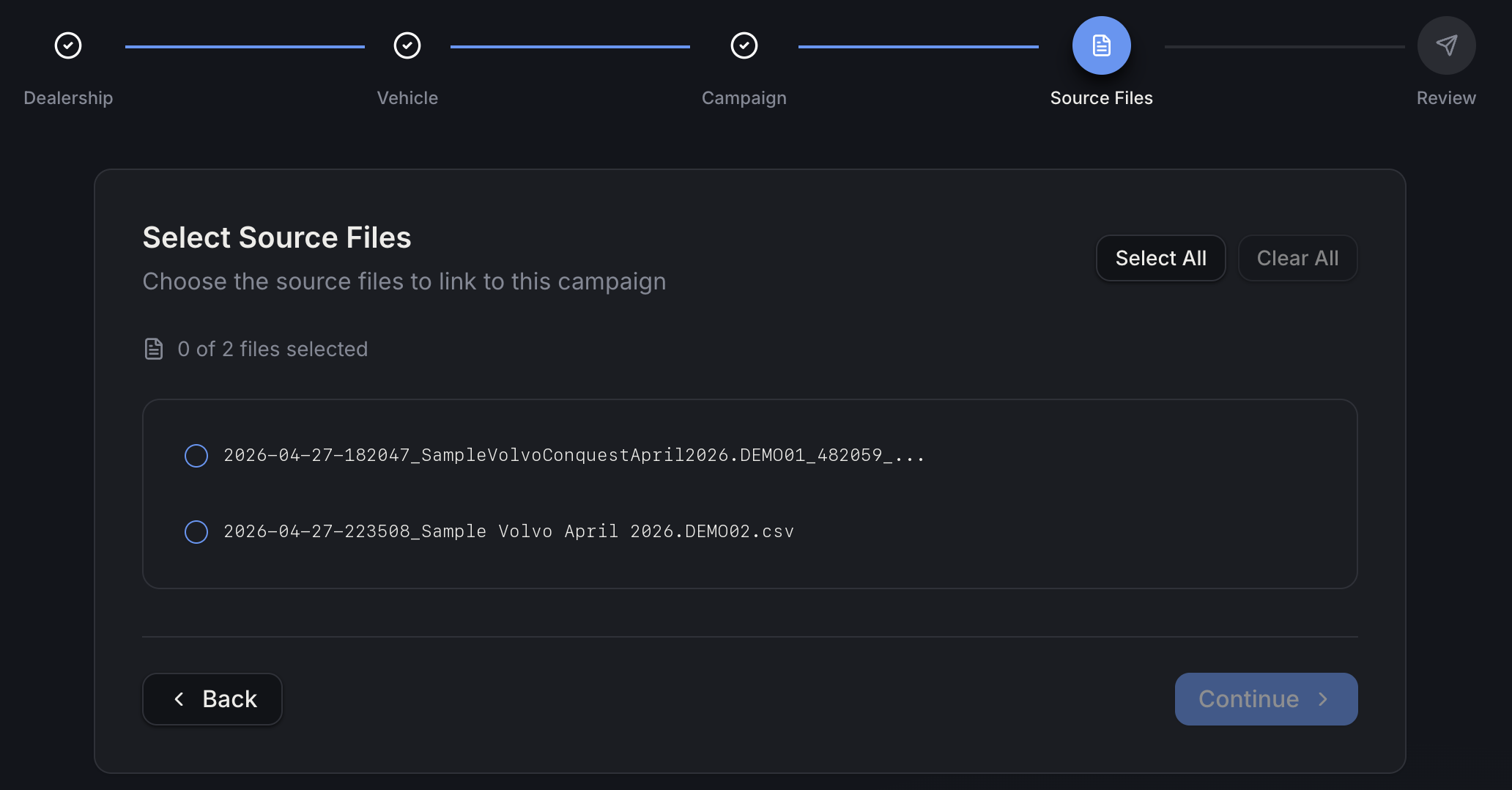
(File names shown above are sample data.)
You need at least one file selected before you can continue.
Step 5: Review
Confirm everything before submitting.
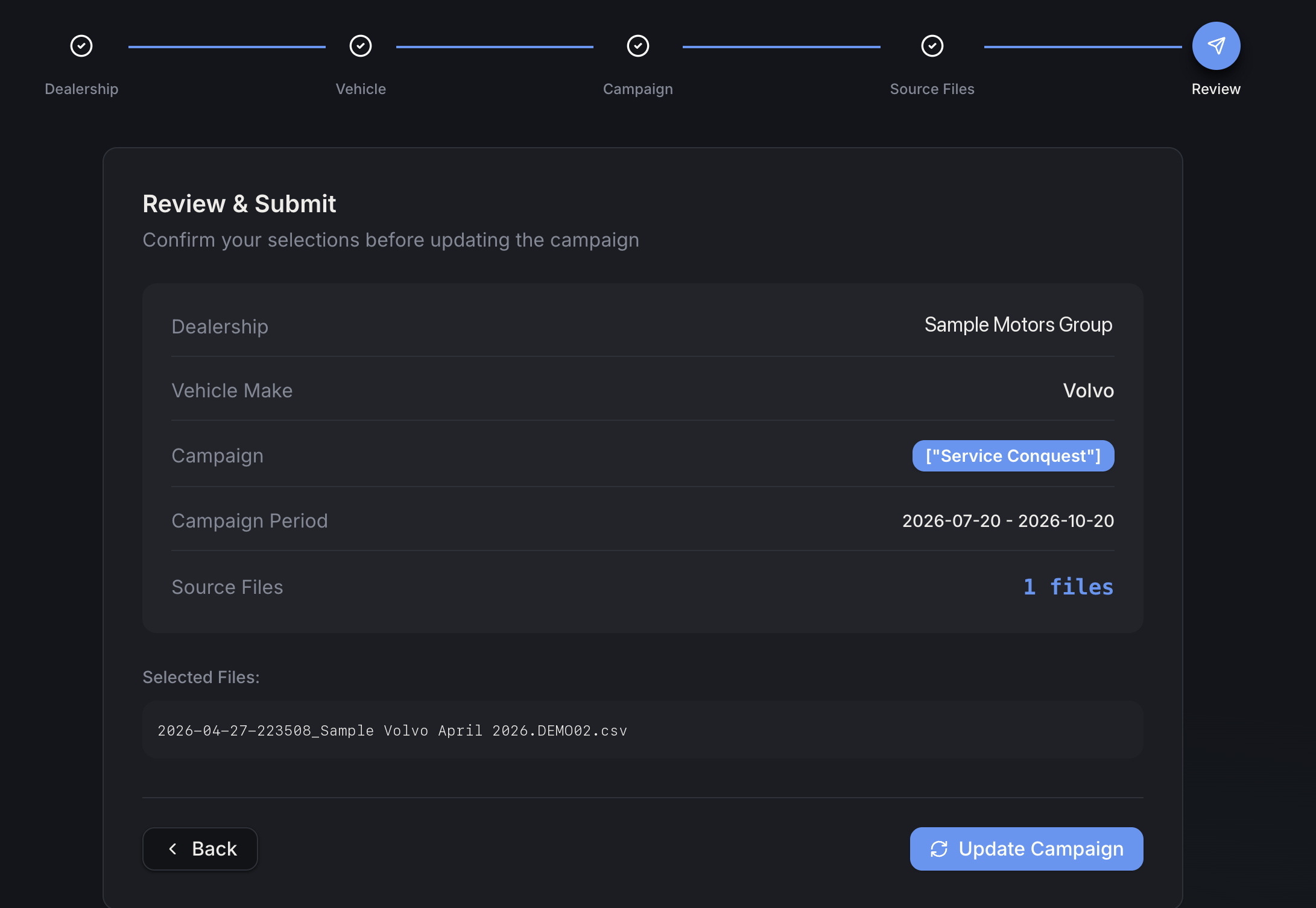
(Dealership name and file name shown above are sample data.)
This is a read-only summary of the dealership, vehicle make, campaign, and which file(s) you're about to link. Click Update Campaign to finish — you'll see a confirmation with the campaign ID and how many files were linked, plus an option to update another campaign right away.